Templates
In the Django Intro page, we learned that the result should be in HTML, and it should be created in a template, so let's do that.
Create a templates folder inside the members folder, and create a HTML file named myfirst.html.
The file structure should be like this:
my_tennis_club
    manage.py
    my_tennis_club/
    members/
        templates/
            myfirst.html
Open the HTML file and insert the following:
<!DOCTYPE html>
<html>
<body>

<h1>Hello World!</h1>
<p>Welcome to my first Django project!</p>

</body>
</html>
Modify the View
Open the views.py file in the members folder, and replace its content with this:
from django.http import HttpResponse
from django.template import loader

def members(request):
  template = loader.get_template('myfirst.html')
  return HttpResponse(template.render())
Change Settings
To be able to work with more complicated stuff than "Hello World!", We have to tell Django that a new app is created.
This is done in the settings.py file in the my_tennis_club folder.
Look up the INSTALLED_APPS[] list and add the members app like this:
INSTALLED_APPS = [
    'django.contrib.admin',
    'django.contrib.auth',
    'django.contrib.contenttypes',
    'django.contrib.sessions',
    'django.contrib.messages',
    'django.contrib.staticfiles',
    'members'
]
Then run this command:
python manage.py migrate
Which will produce this output:
Operations to perform:
  Apply all migrations: admin, auth,
contenttypes, sessions
Running migrations:
  Applying
contenttypes.0001_initial... OK
  Applying auth.0001_initial... OK

Applying admin.0001_initial... OK
  Applying
admin.0002_logentry_remove_auto_add... OK
  Applying
admin.0003_logentry_add_action_flag_choices... OK
  Applying
contenttypes.0002_remove_content_type_name... OK
  Applying
auth.0002_alter_permission_name_max_length... OK
  Applying
auth.0003_alter_user_email_max_length... OK
  Applying
auth.0004_alter_user_username_opts... OK
  Applying
auth.0005_alter_user_last_login_null... OK
  Applying
auth.0006_require_contenttypes_0002... OK
  Applying
auth.0007_alter_validators_add_error_messages... OK
  Applying
auth.0008_alter_user_username_max_length... OK
  Applying
auth.0009_alter_user_last_name_max_length... OK
  Applying
auth.0010_alter_group_name_max_length... OK
  Applying
auth.0011_update_proxy_permissions... OK
  Applying
auth.0012_alter_user_first_name_max_length... OK
  Applying
sessions.0001_initial... OK

(myworld) C:\Users\Your Name\myworld\my_tennis_club>
Start the server by navigating to the /my_tennis_club folder and execute this command:
python manage.py runserver
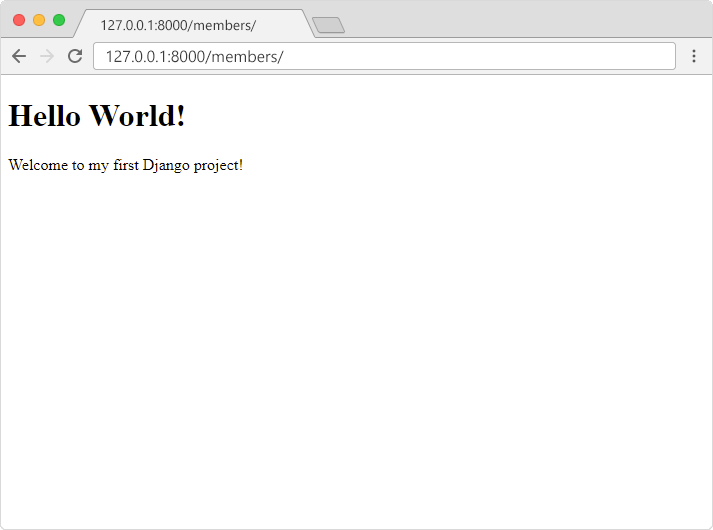
In the browser window, type 127.0.0.1:8000/members/ in the address bar.
The result should look like this: