Change Platform:
Create a Branch
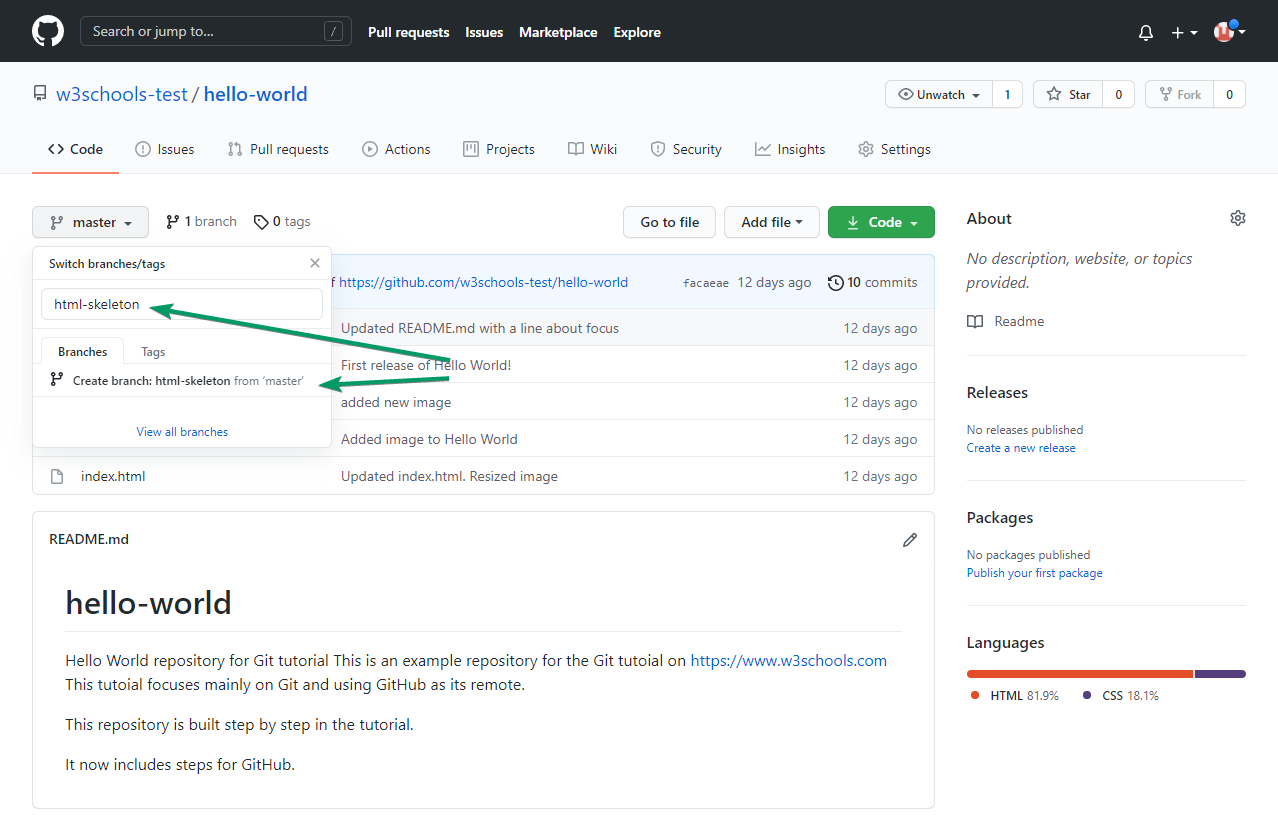
On GitHub, access your repository and click the "master" branch button.
There you can create a new Branch. Type in a descriptive name, and click Create branch:
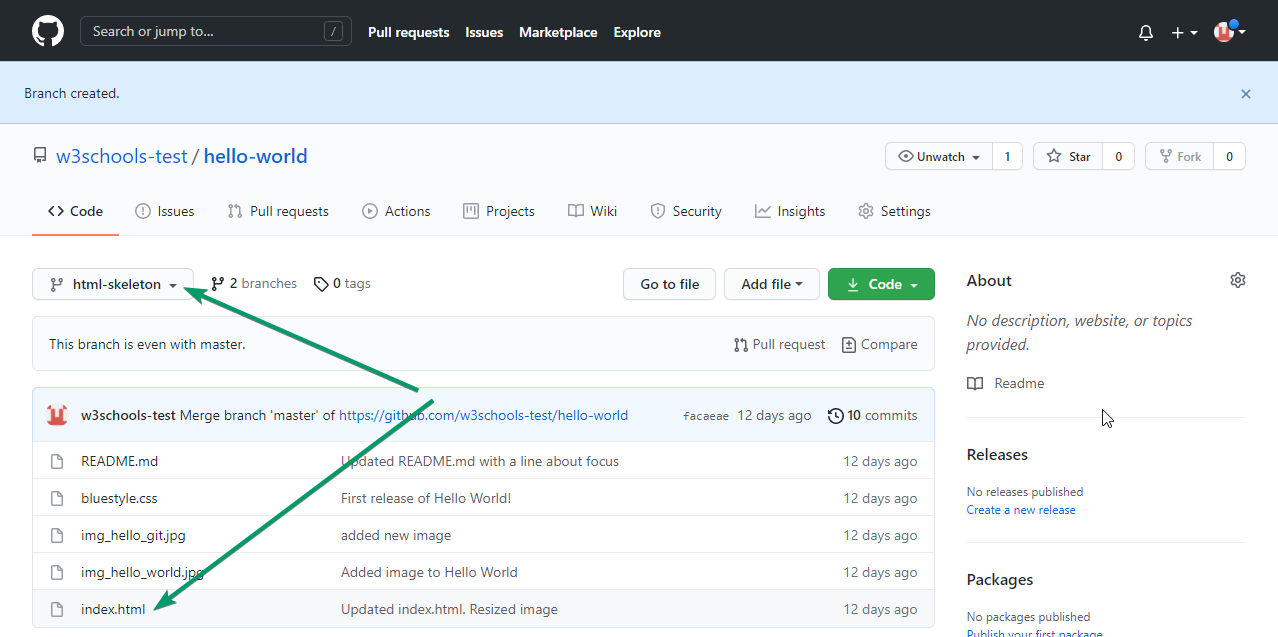
The branch should now be created and active. You can confirm which branch you are working on by looking at the branch button. See that it now says "html-skeleton" instead of "main"?
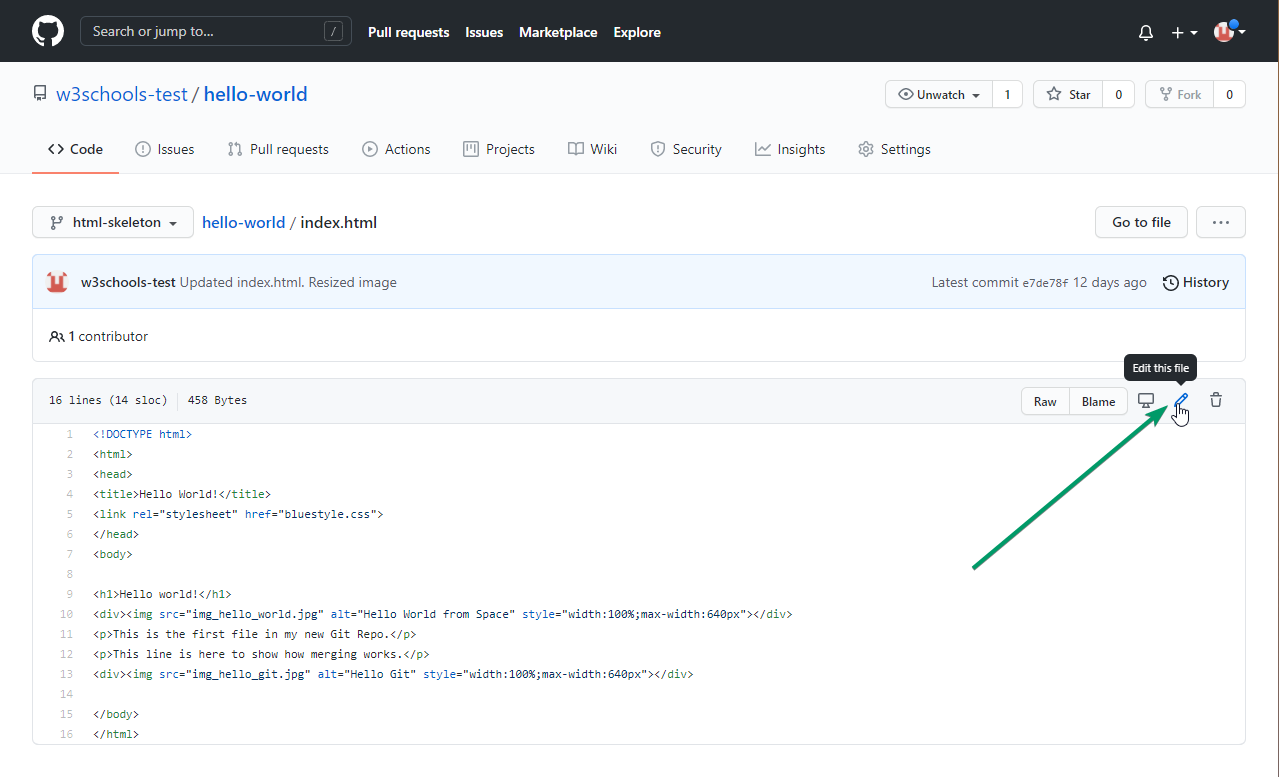
Start working on an existing file in this branch. Click the "index.html" file and start editing:
After you have finished editing the file, you can click the "Preview changes" tab to see the changes you made highlighted:
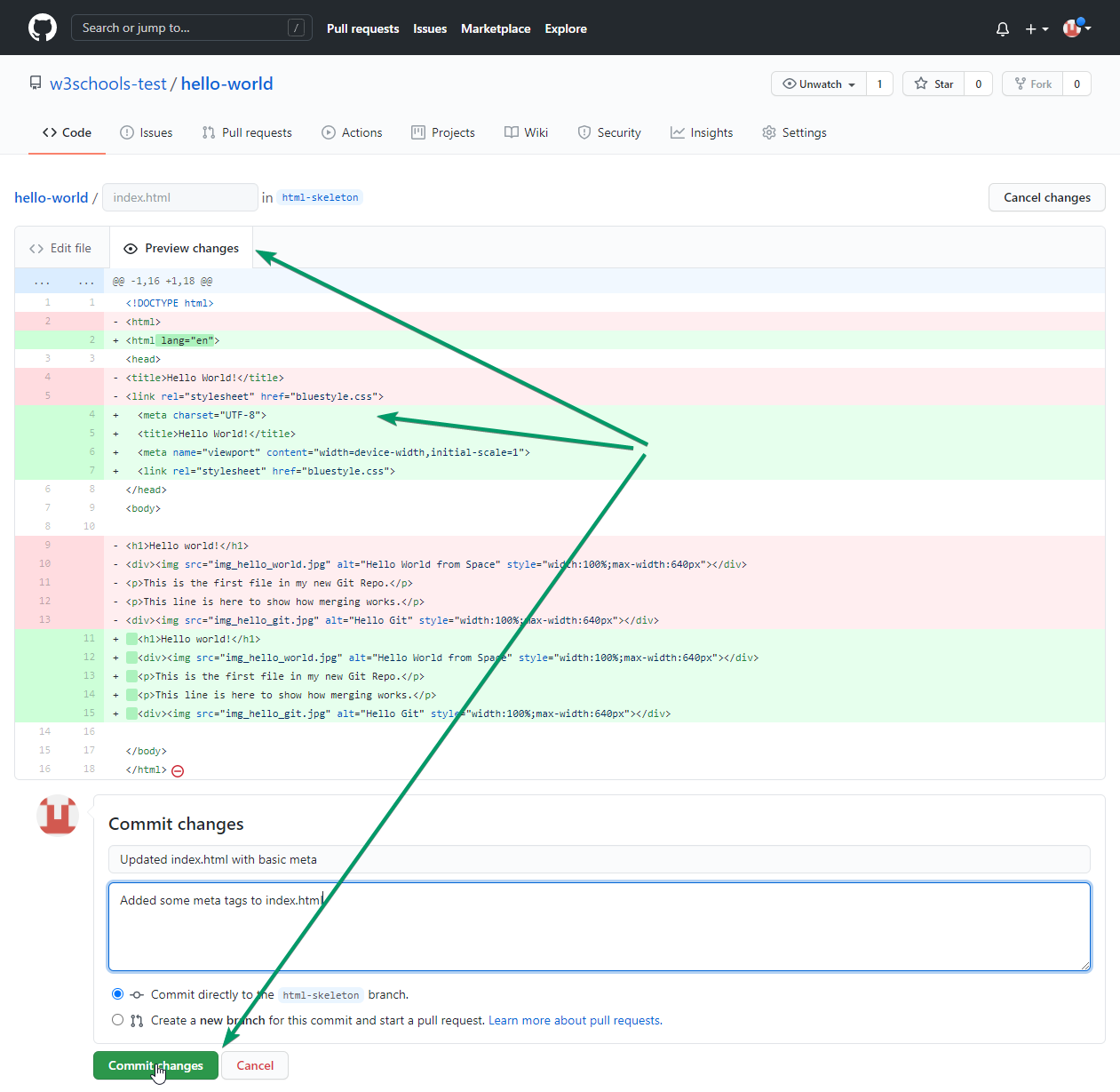
If you are happy with the change, add a comment that explains what you did, and click Commit changes.
You now have a new branch on GitHub, updated with some changes!
Switch Branch
To switch to another branch in GitHub's web interface, click the branch dropdown and select the branch you want to work on.
To switch branches using the command line:
Example
git switch branch-name
Delete Branch
To delete a branch on GitHub, go to the branches page, find your branch, and click the delete icon (trash can).
To delete a branch using the command line:
Example
git branch -d branch-name
To delete a remote branch:
Example
git push origin --delete branch-name
Rename Branch
To rename a branch using the command line:
Example
git branch -m old-name new-name
Merge Branch
To merge a branch into another on GitHub, open a Pull Request (PR) and follow the prompts to merge.
To merge using the command line:
Example
git merge branch-name
View Branches
To see all branches in your repository on GitHub, click the branch dropdown at the top of the file list.
To view branches using the command line:
Example
git branch
Protected Branches
Some branches (like main) may be protected, meaning you cannot delete or force-push to them without special permissions.
This helps prevent accidental changes to important branches.